
【初学者向け】Terraformの基本と環境構築フロー(Windows)

AWSなどのクラウドインフラを構築する際、毎回マネジメントコンソール画面を操作していませんか?
「設定ミスがないか不安」「同じ環境をもう一つ作るのが面倒」そんな悩みを解決し、
モダンな開発現場で必須スキルとなっているのが「Terraform(テラフォーム)」です。
この記事では、インフラ初心者に向けてTerraformの基本概念からと環境構築を行いたいと思います。
Terraformとは?
Terraformは、「IaC(Infrastructure as Code)」を実現するためのツールです。
簡単に言うと、インフラの構成をプログラミングのコードのように書いて管理するという方法です。
例えば、AWSで「VPCを切り、パブリックサブネットとプライベートサブネットを分けて、EC2インスタンスを冗長化して配置し、セキュリティグループを細かく設定する」といったセキュアな環境を作るとします。
これを手作業で行うと非常に手間がかかり、設定のチェック漏れなどのリスクも高まります。
Terraformを使えば、これらの構成を「設計図(コード)」として記述し、
コマンドを叩くだけでツールが全自動でクラウド上にインフラを構築してくれます。
属人性を無くし、初学者でもミスが起きにくいため、現在のチーム開発においては欠かせない
標準技術となっています。
本記事では、その最初の一歩となるTerraformを使うための環境構築の手順を解説していきたいと思います。
Terraform導入
https://developer.hashicorp.com/terraform/install
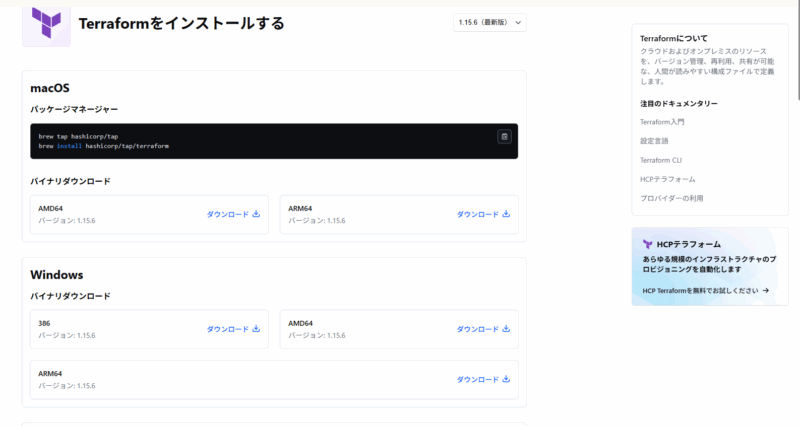
TerraformはAWS外のツールとなりますのでお使いのWindowsの規格に合わせてインストールしてください。
コマンドプロンプトを開き以下を入力することで表示されます。
echo %PROCESSOR_ARCHITECTURE%私の場合はAMD64のため、AMD64をインストールします。
ダウンロードしたzipファイル解凍すると、terraform.exeというファイルが表示されます。
※今回は新しくフォルダを作成し、Cドライブ直下に配置しています。
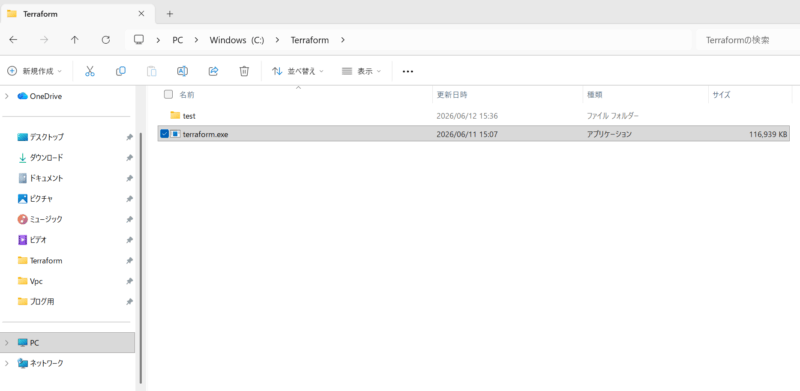
次に環境変数を設定します。
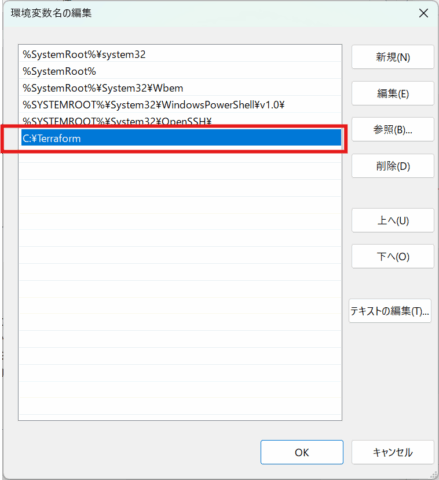
環境変数にパスを通すことで、コマンドプロンプトからterraformコマンドを直接実行できるようになります。
以下の手順で、システム環境変数にパスを追加します。
Windows+R で sysdm.cpl と入力、詳細設定タブより環境変数を選択します。
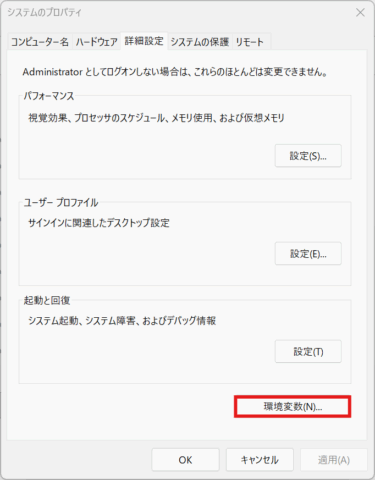
システム環境変数(S)のPathを選択し、編集で先ほど作成したTerraformのフォルダを選択します。
PowerShellでPathが通っているか確認します。
terraform と入力してください。
PS C:\Users\morimoto> terraform
terraform : 用語 'terraform' は、コマンドレット、関数、スクリプト ファイル、または操作可能なプログラムの名前として認識されません。名前が正しく記述されてい
ることを確認し、パスが含まれている場合はそのパスが正しいことを確認してから、再試行してください。
発生場所 行:1 文字:1
+ terraform
+ ~~~~~~~~~
    + CategoryInfo          : ObjectNotFound: (terraform:String) [], CommandNotFoundException
    + FullyQualifiedErrorId : CommandNotFoundException

PS C:\Users\morimoto>
もし上記のような表示が出た場合、PowerShellを再起動してみてください。
以下のような表示になればインストールは完了しています。
PS C:\Users\morimoto> terraform
Usage: terraform [global options] <subcommand> [args]

The available commands for execution are listed below.
The primary workflow commands are given first, followed by
less common or more advanced commands.

Main commands:
  init          Prepare your working directory for other commands
  validate      Check whether the configuration is valid
  plan          Show changes required by the current configuration
  apply         Create or update infrastructure
  destroy       Destroy previously-created infrastructure

All other commands:
  console       Try Terraform expressions at an interactive command prompt
  fmt           Reformat your configuration in the standard style
  force-unlock  Release a stuck lock on the current workspace
  get           Install or upgrade remote Terraform modules
  graph         Generate a Graphviz graph of the steps in an operation
  import        Associate existing infrastructure with a Terraform resource
  login         Obtain and save credentials for a remote host
  logout        Remove locally-stored credentials for a remote host
  metadata      Metadata related commands
  modules       Show all declared modules in a working directory
  output        Show output values from your root module
  providers     Show the providers required for this configuration
  query         Search and list remote infrastructure with Terraform
  refresh       Update the state to match remote systems
  show          Show the current state or a saved plan
  stacks        Manage HCP Terraform stack operations
  state         Advanced state management
  taint         Mark a resource instance as not fully functional
  test          Execute integration tests for Terraform modules
  untaint       Remove the 'tainted' state from a resource instance
  version       Show the current Terraform version
  workspace     Workspace management

Global options (use these before the subcommand, if any):
  -chdir=DIR    Switch to a different working directory before executing the
                given subcommand.
  -help         Show this help output or the help for a specified subcommand.
  -version      An alias for the "version" subcommand.
PS C:\Users\morimoto> terraform --version
Terraform v1.15.6
on windows_amd64
PS C:\Users\morimoto>
もしコマンドが見つかりませんといったエラーが出た場合は、インストールが完了していないか、環境変数のPATH設定がうまくいっていない可能性が高いので一度見直してください。
以上でTerraformの導入は完了となります。
まだ導入段階で実際にコマンドを打つためには認証情報等、様々な設定が必要となります。
その点については次回以降、解説していきたいと思います。
